


What We Know
- AirPlay from iOS: Connect iOS & TV to same WiFi > Launch Fibe TV app > Sign in > Play content > Click Cast icon > Tap AirPlay > Select TV > Start watching on TV.
- AirPlay from Mac: Connect Mac and TV to same WiFi > Open Safari > Visit Fibe TV website > Login > Play a title > Tap AirPlay icon > Select TV > Watch content on TV.
- AirPlay to Android TV: Connect iOS and TV to same WiFi > Open Fibe TV app > Sign in > Play content > Click Cast icon > Tap AirPlay > Select TV > Stream content on TV.
The Bell Fibe TV is a dedicated app for existing Bell TV clients for streaming TV shows and movies anytime and anywhere. As the app is AirPlay-compatible, you can use your iPhone or iPad to stream the content on Apple TV or AirPlay 2-compatible TV with one click. To use Apple AirPlay, ensure that your iPhone and AirPlay receiver are connected to the same WiFi network.
How to AirPlay Fibe TV from iPhone or iPad
(1) Turn on your Apple or AirPlay-compatible TV.
(2) Connect your TV and iPhone/iPad to the same WiFi network.
(3) Launch the Fibe TV app on your iOS device.
- If you don’t have the app, install it from the App Store.
(4) Select and play your favorite content once you log in.
(5) When it starts playing, click the Chromecast icon and select AirPlay.

(6) Select your Apple or AirPlay-compatible TV from the list of devices.
You can start streaming the content if the pairing is successful.
Note: If you want a better alternative, you shall AirPlay Vudu from iPhone, iPad, & Mac and stream movies and shows on TV.
How to AirPlay Fibe TV from Mac
(1) Turn on your AirPlay-compatible TV and MacBook.
(2) Connect both devices to the same WIFI network.
(3) On your Mac, launch the Safari web browser.
(4) Visit the official Fibe TV website on your browser.

(5) Sign in to your account by providing your credentials.
(6) Select and play the Fibe TV content you wish to mirror on your Apple or AirPlay-compatible TV.
(7) Now, click on the AirPlay icon on the status bar of your Mac.
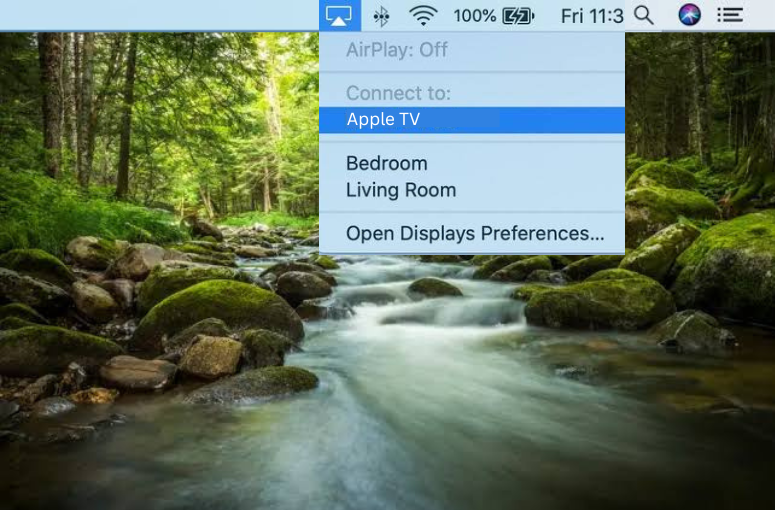
(8) Select your Apple TV or AirPlay-compatible TV from the list of available devices.
Start mirroring the content on your Apple or AirPlay-compatible TV via AirPlay.
Note: Meanwhile, you shall check out the causes and fixes of the Philips TV Screen Mirroring Not Working.
How to AirPlay Fibe TV to Android TV
Before you start, enable AirPlay on your Android TV.
(1) Connect your iPhone or iPad and Android TV to the same WiFi network.
(2) Launch the Bell Fibe TV app on your Apple device and Log in to your account.
(3) Select the content that you wish to play in the app.
(4) Tap the Chromecast icon at the top and select AirPlay from the Play On pop-up menu.
(5) Now select your AirPlay 2 compatible Android TV from the list.
Once connected, the selected media file will start to play on the TV screen.
How to Mirror Fibe TV to Smart TV Without WiFi
At times, you might have a lot of issues with your WiFi network. With a Lightning Digital AV adapter and an HDMI cable, you can mirror all your favorite contents directly to your smart TV without any problem.
(1) Connect the Lightning Digital AV adapter to your iPhone charging port.
(2) Plug one end of the HDMI cable with the Lightning Digital AV adapter and the other end into the HDMI port of your TV.
(3) Switch on your TV and go to the Source settings.
(4) Change the TV source to your connected HDMI port.
(5) Now install and open the Fibe TV on your iPhone or iPad from the App Store.
(6) Sign in to your account and whatever shows or movies you pick will appear from your iPhone or iPod to your TV.
How to Fix Fibe TV AirPlay Not Working
Some users have reported that they have problems with Fibe TV AirPlay. If AirPlay stops working on your iPhone, you can try these techniques to fix the issue.
- Connect your iPhone or iPad and the AirPlay-compatible TV to a stable WiFi network.
- Check whether the subscription on Fibe TV is expired if yes then renew it.
- Keep AirPlay-connected devices close to each other.
- Restart the application on your iPhone or iPad.
- Clear the cache files on your device and data on your TV.
- Do an update on both AirPlay-connected devices’ firmware.
- Uninstall and reinstall the latest version of Fibe TV on your Apple device.
- Reset the phone network settings.
- Restart your WiFi router if bandwidth is low.
Frequently Asked Questions
Lagging may occur due to an outdated app version or device firmware. Update the app and device to the latest version to fix the issue.
Uninstall the Bell Fibe TV and reinstall it again from the App Store to delete the corrupted cache files.
