
Close Menu
    Facebook X (Twitter) Instagram
    AirPlay Guru
    • Best
    • Comparison
    • Gaming Consoles
    • How To
    • Smart TV
    • Streaming
    • Troubleshooting
    AirPlay Guru
    Home » How to AirPlay PowerPoint Presentation from iPhone, iPad, and Mac
    How To

    How to AirPlay PowerPoint Presentation from iPhone, iPad, and Mac

    Oliver SinclairBy Oliver SinclairMarch 18, 2024No Comments3 Mins Read
    Facebook Twitter WhatsApp Telegram Email
    AirPlay CompatibleNo
    Download LinkApp Store
    Websitehttps://www.microsoft.com/en/microsoft-365/powerpoint

    Microsoft PowerPoint is the best application to present the project presentation. Unfortunately, the PowerPoint application is not compatible with the AirPlay feature. You can share your presentation only by screen mirroring the content from your iPhone/iPad/Mac to Apple TV or other AirPlay-compatible Smart TVs. If you’re new to AirPlay, we are here to help you. This article explains the various methods of AirPlay PowerPoint, from iPhone/iPad/Mac to Apple TV or other AirPlay-compatible TVs.

    Note: Those finding WiFi connectivity issues can rely on the Digital AV adapter to screen mirror PowerPoint.

    Table of Contents

    Toggle
    • How to AirPlay PowerPoint Using iPhone and iPad
    • How to AirPlay PowerPoint Using Mac
      • How to AirPlay PowerPoint Without WiFi
    • FAQ

    How to AirPlay PowerPoint Using iPhone and iPad

    Note: The PowerPoint app is only compatible with the iPhone or iPad running under iOS/iPadOS 16 or later.

    Before jumping into the steps, turn on AirPlay on Apple TV. If you’re an Android TV user, you must turn on the AirPlay on Android TV. On the other hand, connect your iPhone and Apple TV or AirPlay 2 compatible smart TV to the same WiFi network.

    1. Install the PowerPoint app from the App Store on your device.

    2. Next, open the PowerPoint app and sign in with the login credentials.

    3. Once the home screen appears, click on the presentation tile you want to stream.

    4. When it starts playing, click the Screen Mirroring icon from the Control Center of your device.
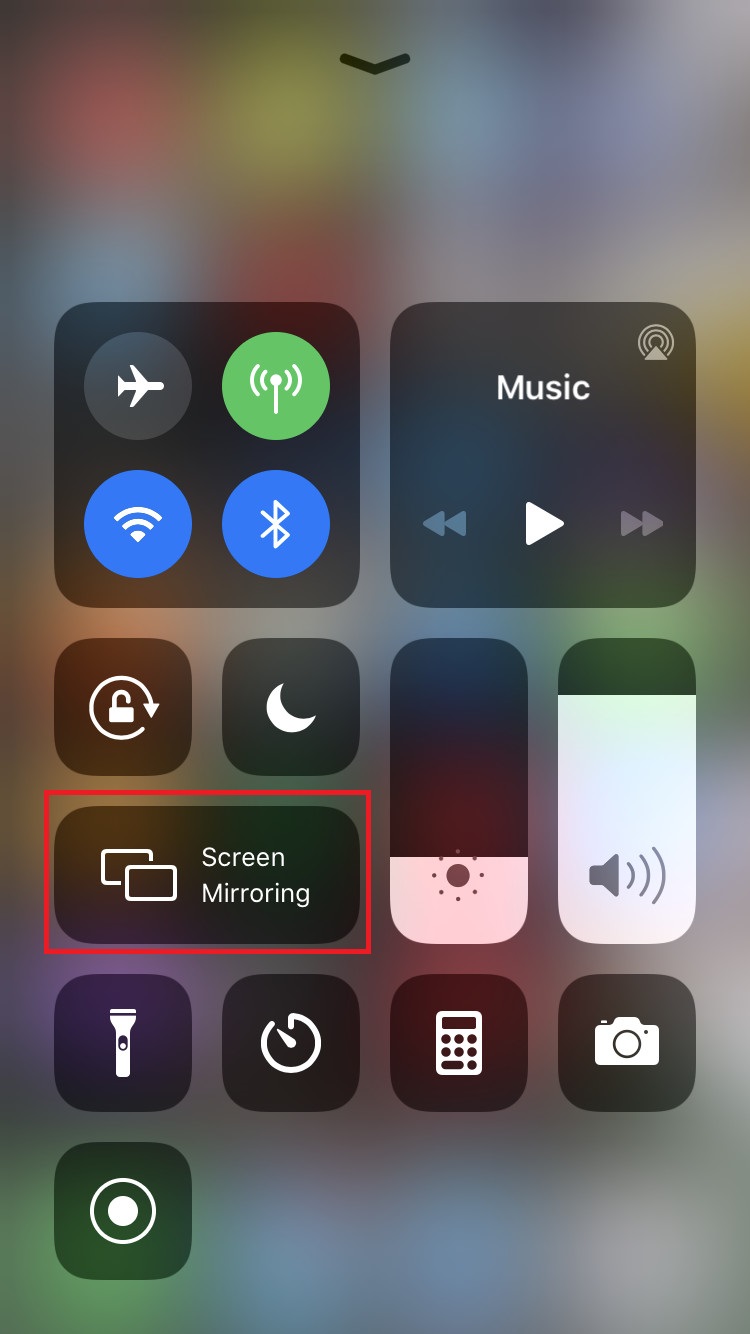
    Click the SCreen Mirroring icon to AirPlay Microsoft PowerPoint

    5. It will search for nearby devices. Select your AirPlay 2-enabled Smart TV or Apple TV from the available devices.

    6. If prompted, enter the AirPlay Code displayed on the TV screen.

    Once you have finished streaming, disable AirPlay on your iPhone to stop sharing the screen with your Apple TV/Smart TV.

    How to AirPlay PowerPoint Using Mac

    1. Connect your AirPlay 2 compatible smart TV or Apple TV and Mac to the same WiFi network.

    2. Open the Microsoft PowerPoint app and log into your account.

    3. Once you see the library, select a presentation show you want to stream.
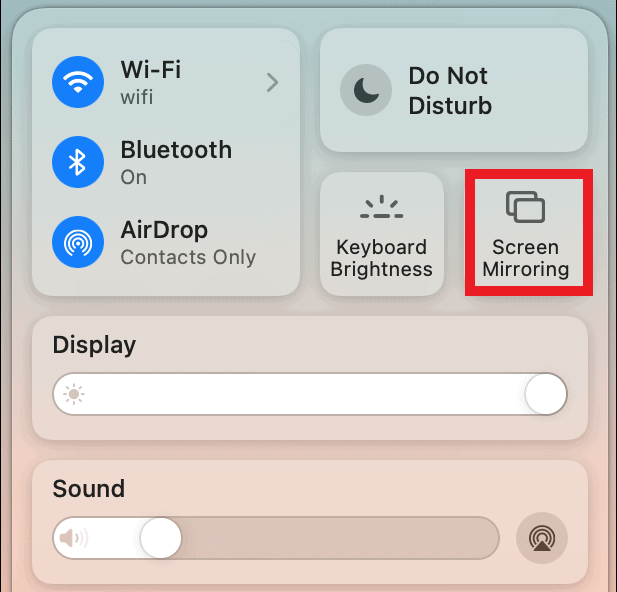
    Click the SCreen Mirroring icon to AirPlay Microsoft PowerPoint

    4. While playing, click the Control Center icon and select the Screen Mirroring option.

    5. Select your TV name from the list of devices.

    6. Now, it will play the selected video on your TV screen.

    You can stop AirPlay on your Mac when you finish streaming PowerPoint on your TV.

    How to AirPlay PowerPoint Without WiFi

    This method requires an HDMI cable, a Lightning Digital AV Adapter for iPhone, and a USB-C Digital AV Multiport Adapter for MacBook.

    1. Connect the Digital AV Adapter to the power source using the USB-C power cable.
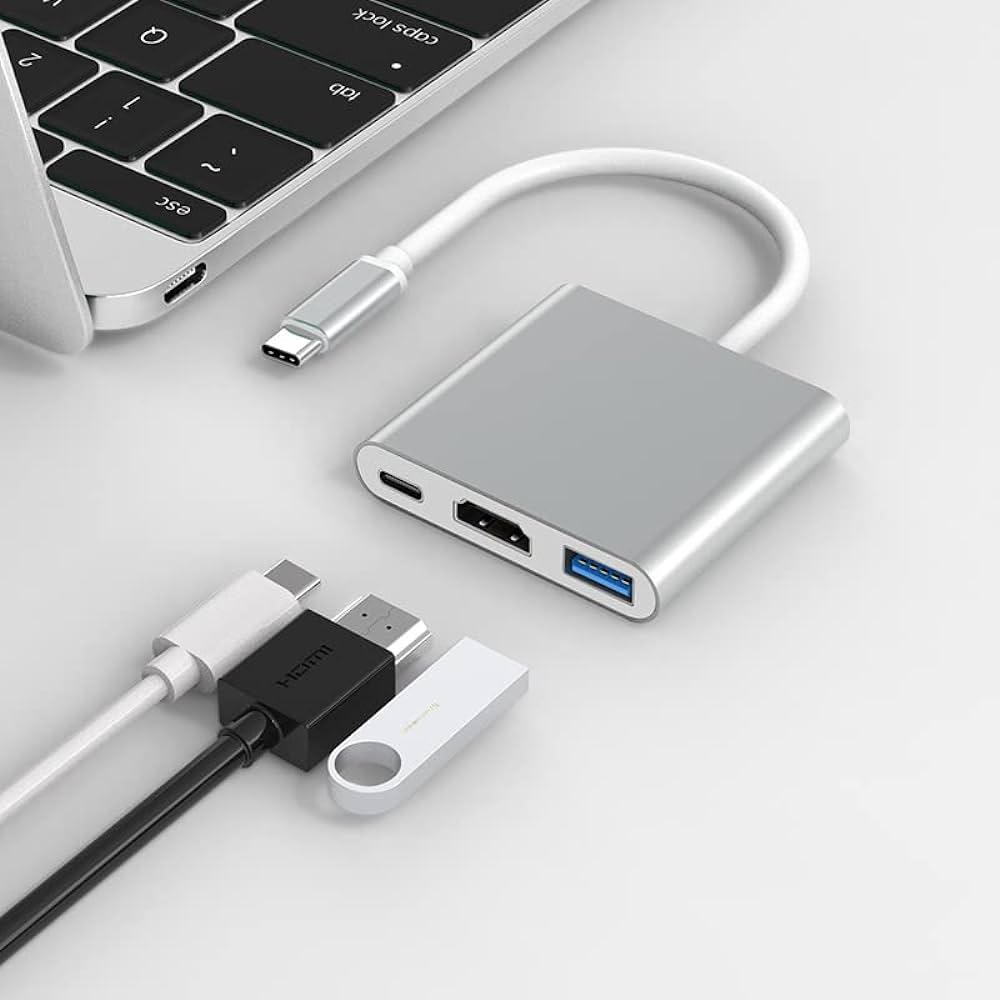
    Connect the Digital AV adapter between Apple device to TV

    2. Now, connect the Digital AV Adapter to the charging port on your Mac and iPhone.

    3. Connect the HDMI cable from the adapter to the TV.

    4 Now, change the input on your TV to view your iPhone/Mac’s screen.

    5. Finally, play the PowerPoint content to stream it on your smart TV.

    FAQ

    1. Why does PowerPoint show a black screen during AirPlay?

    If it shows a black screen on PowerPoint, it may have corrupted cache files within the app. In this case, you should uninstall and reinstall the app to clear the cache.

    AirPlay Apple TV iPhone Mac PowerPoint Smart TV
    Previous ArticleHow to AirPlay Amazon Prime From iPhone, iPad & Mac
    Next Article How to AirPlay Telegram from iPhone, iPad, and Mac
    Oliver Sinclair

    Hello fellows! This is Oliver Sinclair. I write and share about technologies that fascinate me. We are a household of Apple users, and one of the features we love to use is AirPlay. Once you understand the knack of it, there isn’t something better and more comfortable than AirPlay. You needn’t download or sign in to so many different devices. Just AirPlay it and save your time and device storage. My articles will focus on the tricks and techniques you can use and how to AirPlay different apps, shows, sports, and so on from all your Apple devices, including your iPhone, iPad, and Mac. Let's AirPlay!

    Related Posts

    King403 @ hokilucky How to AirPlay Hoopla from iPhone and Mac

    December 20, 2024 How To

    populerwin @ lemon121 How to AirPlay Philo to Apple TV & Compatible TVs

    December 17, 2024 How To

    sukabet87 @ rajapols How to AirPlay Sling TV from iPhone,iPad,& Mac to Apple TV/Smart TV

    August 13, 2024 How To
    Add A Comment
    Leave A Reply Cancel Reply

    Latest Articles

    Verbluffende winsten behalen kan met https://baloocasino1.nl en een slimme strategie

    September 6, 2026

    Vele kansen onthullen zich via betorysnl.nl voor sportliefhebbers en weddenschappen

    September 6, 2026

    Fantastische Strategien und casinachoscasino.com.de für erfahrene Spieler

    September 6, 2026

    Ergänzende Informationen von Experten führen zu beeindruckenden Erfolgen mit bets24 im Online-Glücksspiel

    September 6, 2026

    Kosteusvoide ja https://posidofiofficial.com tarjoavat täydellisen ratkaisun kuivalle ja ärtyneelle iholle päivittäin

    September 6, 2026

    Practical guidance unlocking consistent profits with grailbet and informed betting choices

    September 6, 2026

    Uitgebreide strategieën leiden spelers door het aanbod van kudosbet casino en meer

    September 5, 2026

    Genuine excitement awaits with slot monster login and immersive casino experiences today

    September 5, 2026
    • Home
    • emas58 @ mudahwede Slot88 Privacy Policy
    • wwtoto @ jorjp Slot88 @ Ledakjitu Contact Us
    © 2026 Airplayguru.com.

    Type above and press Enter to search. Press Esc to cancel.