


kei123 @ darajp QuickTime Player AirPlay Not Working: Causes & Fixes
QuickTime Player is used to edit, trim, rearrange, and rotate the video on Mac. While you can AirPlay QuickTime player’s edited or recorded content from Mac onto your AirPlay 2 compatible TV most of the time, it is still prone to issues. So, when you happen to come across QuickTime AirPlay not working issue, you need to take action to fix it. Upon troubleshooting, you can watch the media playing in QuickTime Player on your Apple TV or AirPlay 2 TV via AirPlay.
Possible Cause for QuickTime AirPlay Not Working on Mac
You cannot AirPlay QuickTime Player from Mac due to the following reasons
- If you try to screen mirror to an unsupported or non-AirPlay device, it might not work.
- Unless both devices are linked under the same WiFi, the AirPlay feature may not function.
- If the device firmware is outdated, some features may stop working.
- Your device’s audio is muted and the level of the volume is very low.
- Technical glitches, errors, or bugs in your devices may affect some software and features.
How to Fix QuickTime AirPlay Not Working on Mac
The following troubleshooting methods will help you to fix AirPlay not working issue.
- Check your Internet Connection & Speed
- Re-Establish WiFi and AirPlay Connection
- Check Firewall Settings on Mac
- Update macOS
- Restart Mac Device
Check Your Internet Connection (WiFi) & Speed
Sometimes the QuickTime AirPlay may not work if the internet connection is poor and unstable. To check the internet speed, you shall head to fast.com. If there is no signal or it is inconsistent, follow the steps given below to fix the issue.
- Disconnect your WiFi connection from your device.
- Reboot the Router or Modem device.
- Bring the Router closer to your device and set it up again.
- Connect your Mac with a stable WiFi connection.
Now, check if the AirPlay on QuickTime player is working well on your Mac. Else, follow the steps below.
Re-Establish AirPlay Connection
If any of your devices are connected to AirPlay, then your desired mirroring device cannot AirPlay the content. In this scenario, you need to re-establish the AirPlay connection. Turn off the AirPlay mode on your Mac, and after a minute, enable the AirPlay feature and connect your desired device to start mirroring the titles.
Check Firewall Settings on Mac
[1]. Turn on your Mac device and click on the Apple Menu icon at the top left corner of the screen.
[2]. Select System Preferences from the menu list.

[3]. Under the System Preferences window, click on the Security & Privacy option.

[4]. On the next windows, select the Firewall tab at the top.

[5]. At the bottom left corner, click on the Lock icon to make changes.
[6]. Enter the username and password and tap Unlock button.
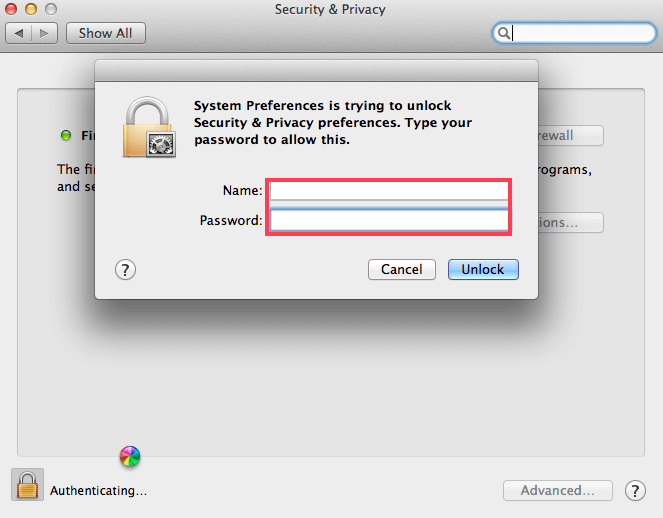
[7]. Next, turn off the Block all incoming connections option.

[8]. Tick the check box next to Automatically allow built-in software to receive incoming connections to fix the AirPlay issue in your Mac device.
That’s it. You have successfully unblocked the incoming connections on your Mac’s firewall. Now check if the QuickTime AirPlay is working without issue.
Update macOS
Updating your outdated macOS will bring new features and improve security and prevent your Mac device from viruses, exploits, vulnerabilities, and malware attacks. In addition, it solves the feature compatibility, a potential downside of new software on your device.
To update your Mac device to the latest software version,
[1]. Click on the Apple icon in the upper-left corner
[2]. Choose System Preferences and select the Software Update option.
[3]. Click on the Update Now button.
[4]. After the software update, restart QuickTime Player. Check whether AirPlay is working on Mac as usual.

Note: AirPlay feature is available on macOS Catalina or the later version of Mac devices.
Restart Mac Device
Restarting your Mac device will enhance performance and suspends technical glitches or bugs. It may clear the cache memory on your device’s RAM and closes the background running apps. The process will start your device freshly and fixes the hardware issues.
To restart your Mac device, click on the Apple menu icon on the top left corner of the screen and then select the Restart option from the menu list. Once your device restarts, check if the AirPlay is working properly on QuickTime Player.
Frequently Asked Question
The QuickTime Player screen recording may not work, if
– The software of your device is outdated.
– The storage space of the Mac is full
– Technical glitch in your device as well on QuickTime Player.
– The video is protected from recording.
